
Comparable Sales and ARV Calculator
Detailed Training on using the ARV Calculator and Comparable Sales Tool to Determine After Repair Value and Calculate Your Offers for Any Real Estate Deal!
Everything you do in real estate hinges on you being able to make an accurate offer. But how do you know what to offer? It starts with After Repair Value. Accurately determining that is CRUCIAL! But how do you get an accurate ARV? It’s by getting accurate comparable sales and filtering them to make sure you’re only looking at the most relevant properties! This guide will show you how to do that to make sure your house flipping, wholesaling, or any other real estate investment business is built on a solid foundation.
Step 1: Get Accurate, Valid, Recent Comparable Sales with Rehab Valuator Premium
Step 2: Use the Rehab Valuator ARV Calculator to Determine After-Repair-Value
Step 3: Generate Comparable Sales Reports to share with lenders!
Short Comps Tutorial:
Getting Reliable Comps and ARV – Yours at a Snap of a Finger!
Step 1: Enter the correct address for the subject property in the Property Info Tab!
For bonus points, enter the correct square footage also! You will need that to calculate Projected After-Repair Value or As-Built Value.
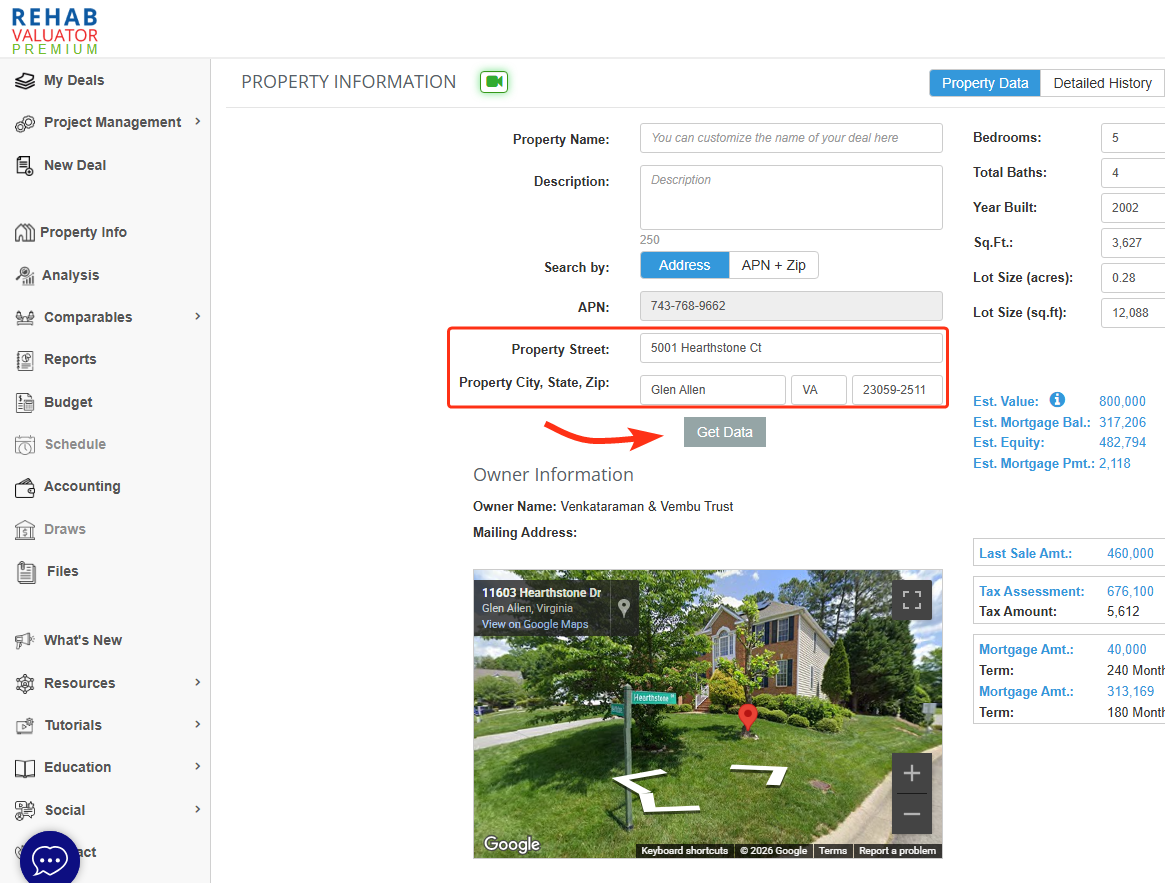
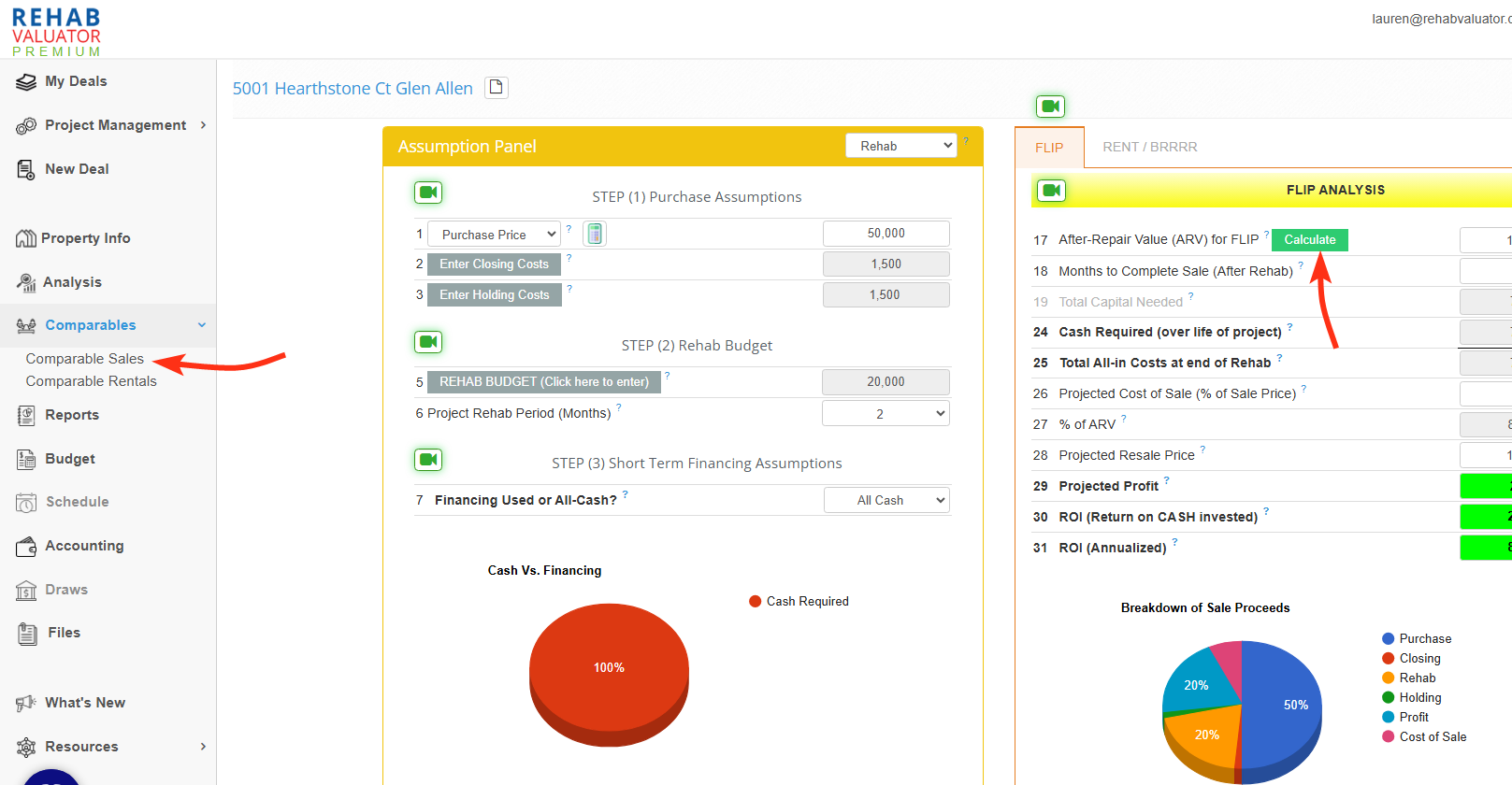
Step 2: Click on 'Comparables' or 'Calculate' to Generate Instant Comparable Sales!
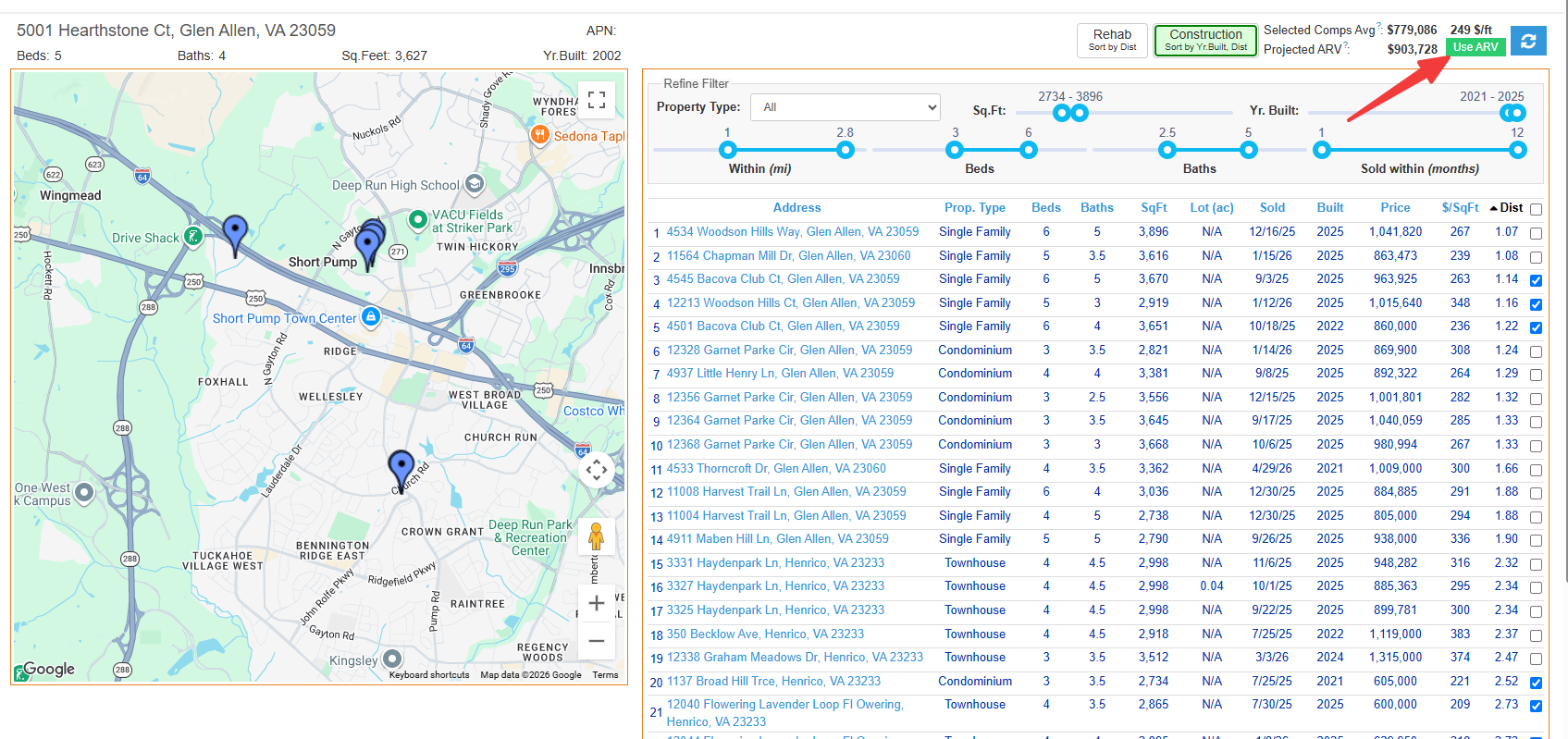
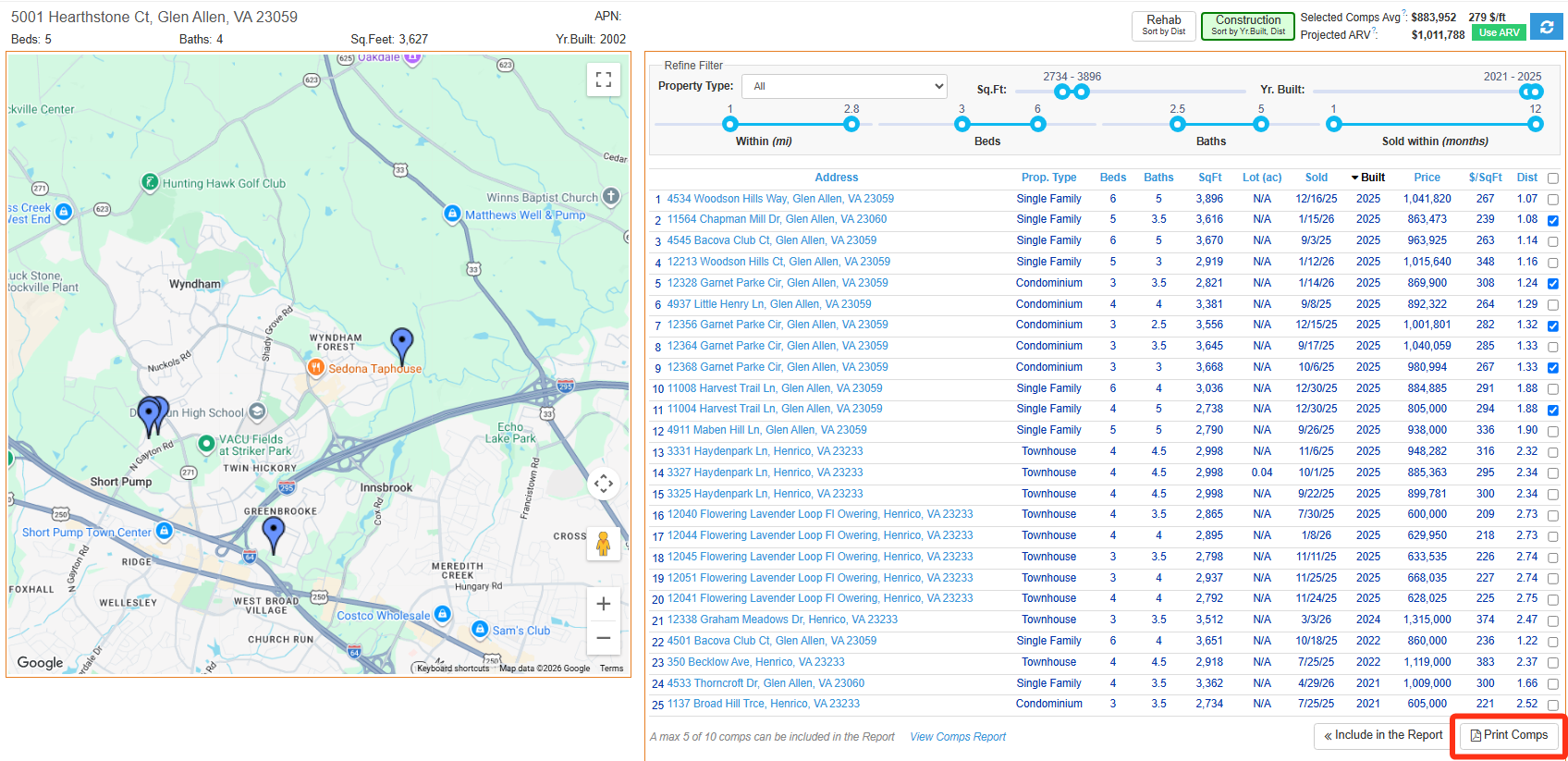
Both options will lead you to the same screen, where up to 25 of the best available comparables will be displayed.
Step 3: 25 Best Comparable Sales Displayed Instantly!
Rehab Valuator Premium will pull comparable sales (where available) from actual sold data in public records. Our algorithm will then filter and sort all available comps in the background by size and relevance and will get you the 25 best comps available, which you’ll then need to filter further to arrive at your ARV or ABV (see step 4 below.)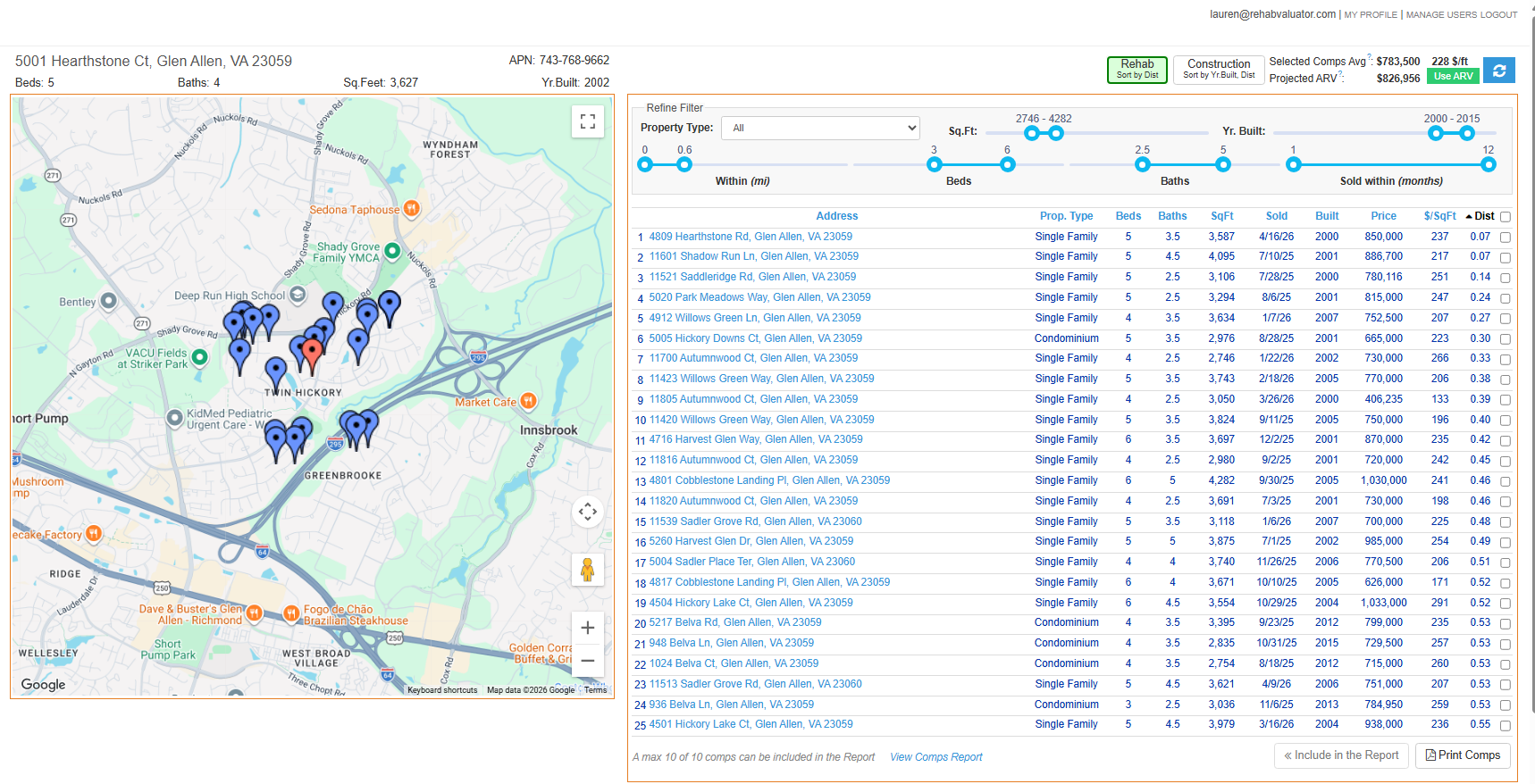
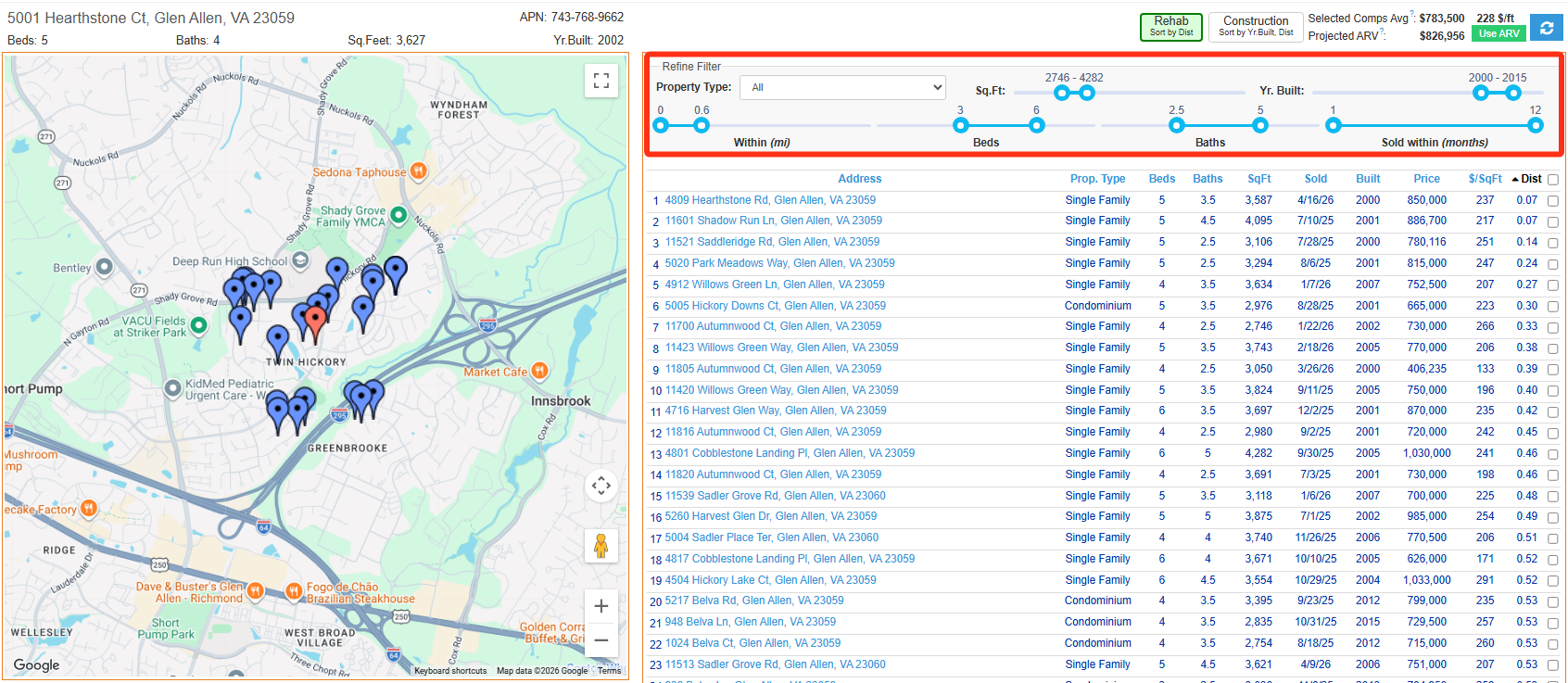
Step 3a: Dynamic Filtering for all of your Sales Comparables
If you want to narrow down your search, you can do so by distance, beds, baths, and other criteria.
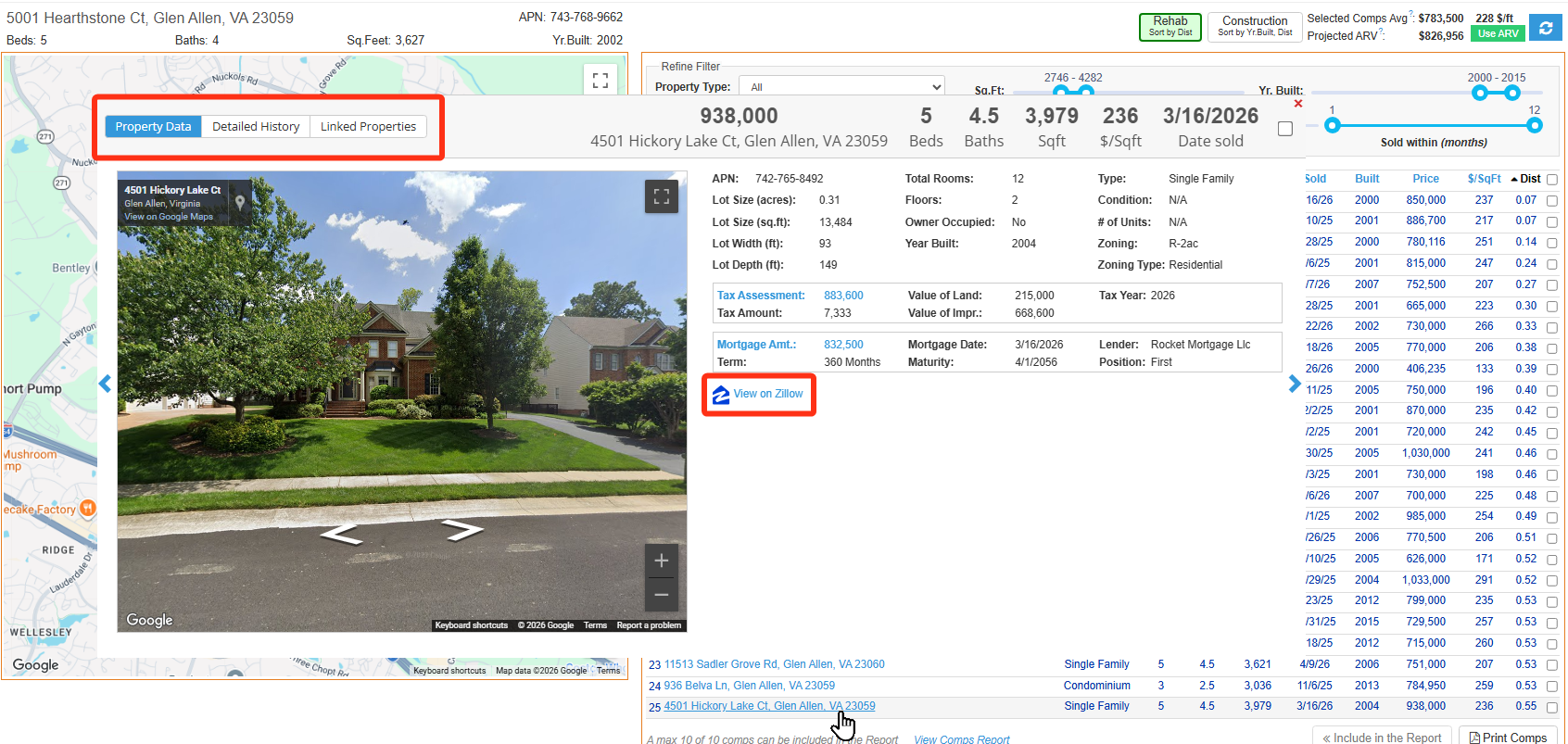
Step 3b: Property Info on All Your Comps!
All available comparable sales are hyperlinked so that you can view details like property data, history, and linked properties, including their Zillow listings.
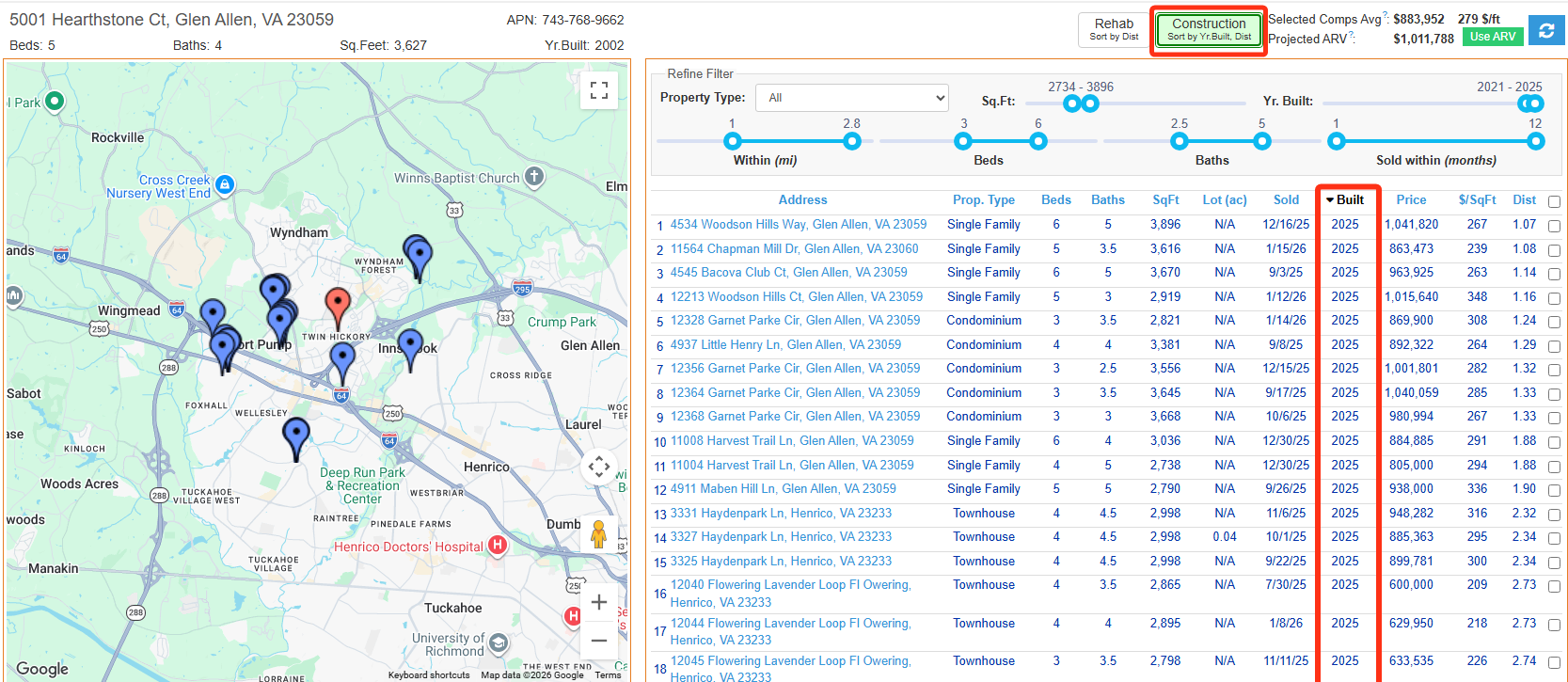
Step 3c: Added Ability to Prioritize by New Construction Sales Comparables
You can further filter comparable sales by year built and property type.
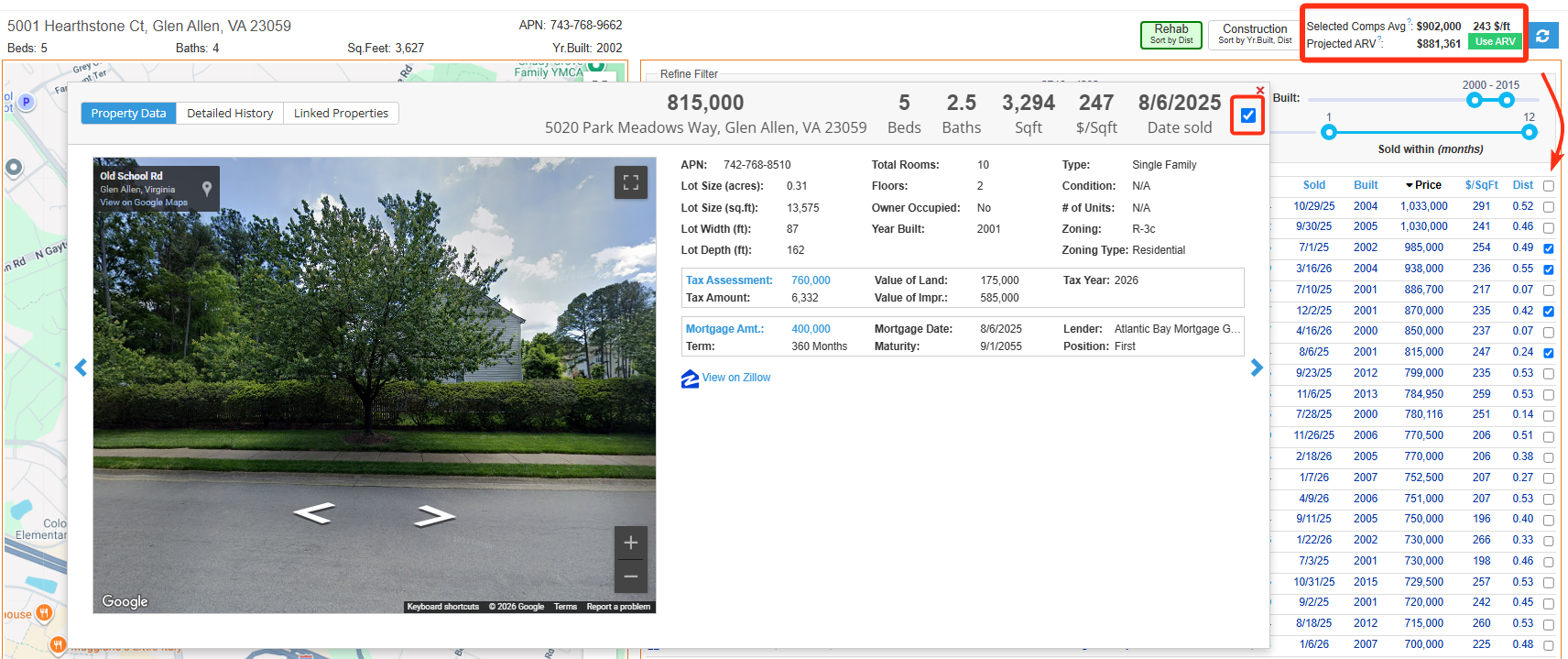
Step 4: Select Your Comparable Sales
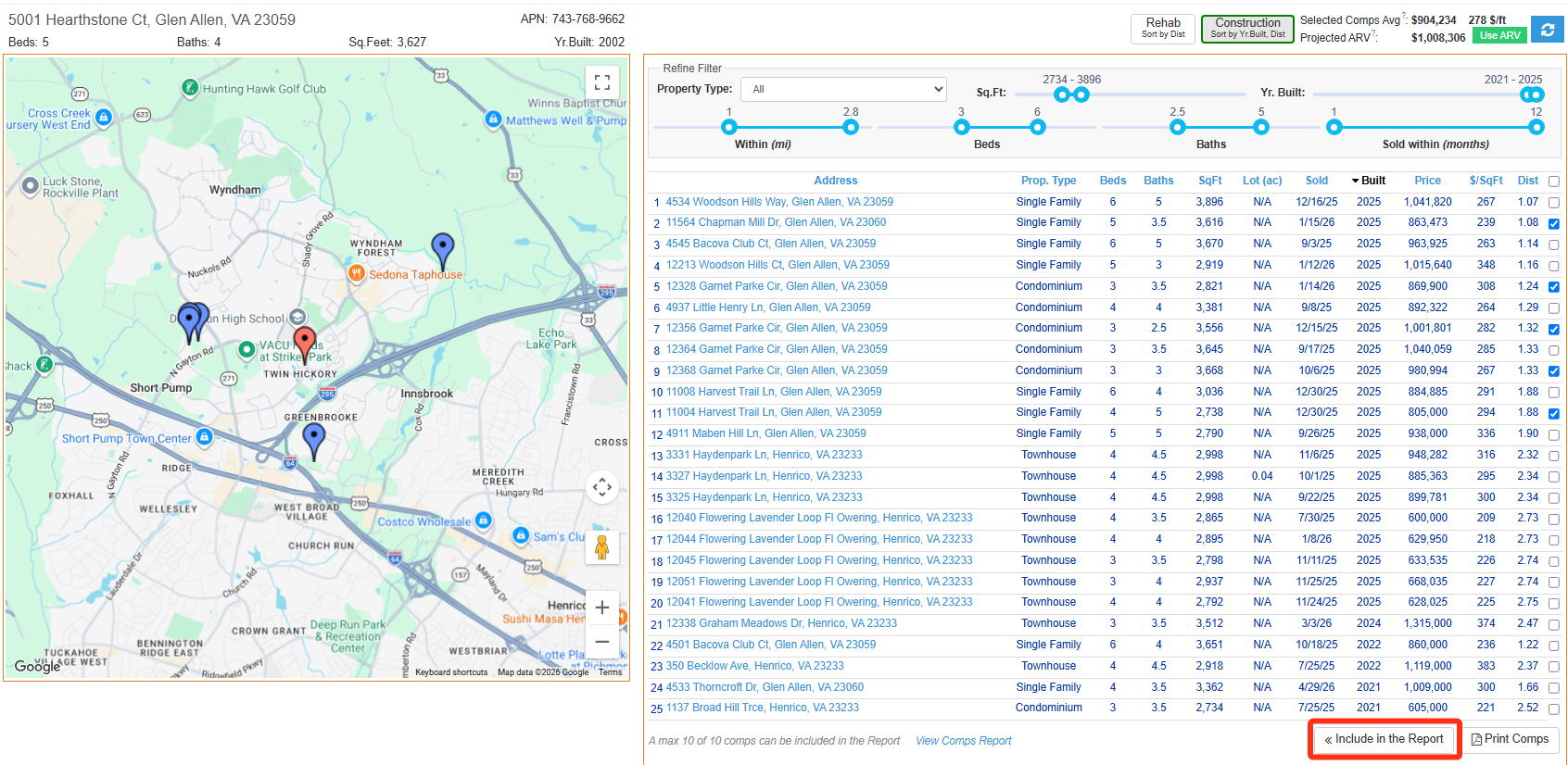
Selecting relevant comps will allow you to generate a Projected ARV or ABV for your project based on the average $/sq. ft. of all selected comps. Comps can be selected through the hyperlinked popups or directly from your filtered comparable sales list.
Step 5: Include your Project ARV Or ABV into your Analysis
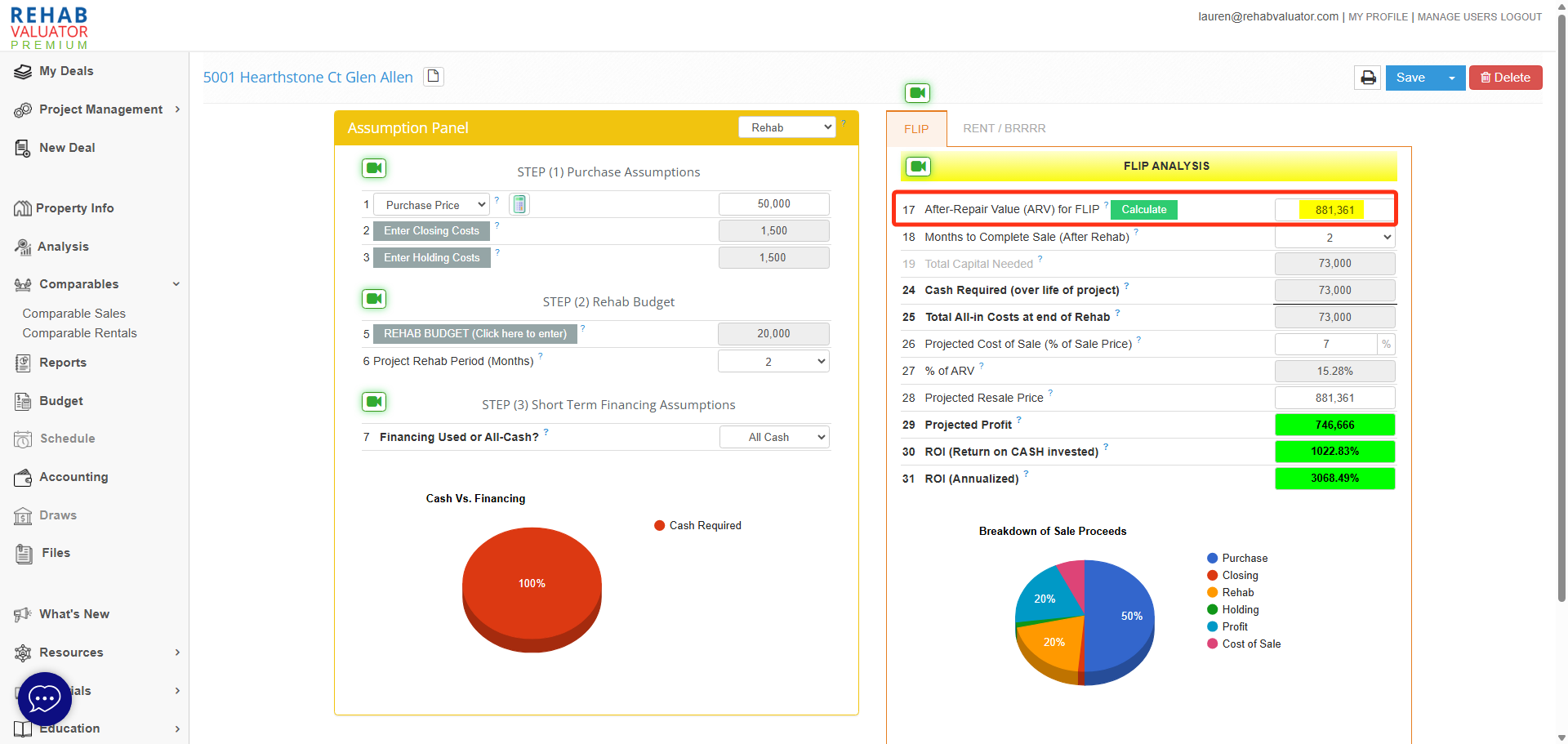
Click the Use ARV button in the comparable sales screen to populate your Project ARV or ABV into your analysis.
Step 6: Generating Comparable Sales Report (Selected Comps)
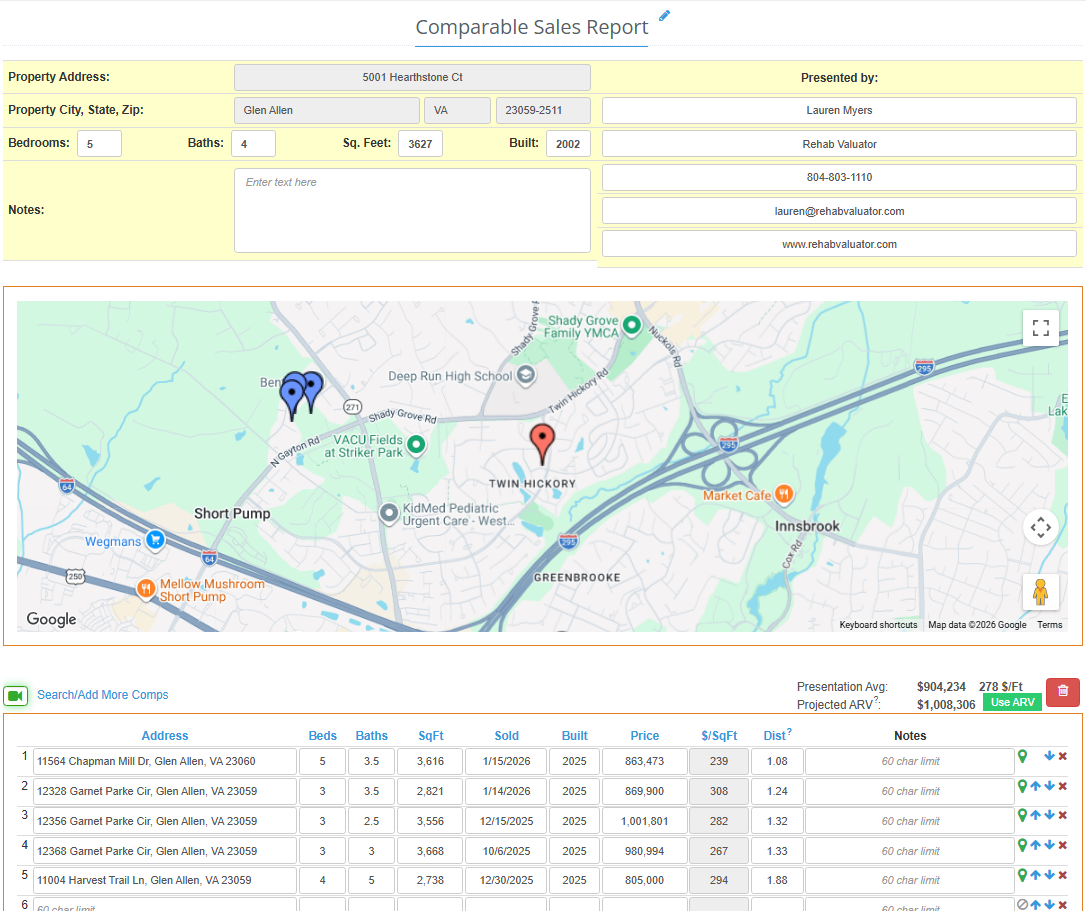
Once you have your Comparable Sales selected, click the Include in the Report button to generate a Comparable Sales Report based on your selected comps.
Step 6a: Printing a List of Comps
You can only include 10 comparable sales in your Comparable Sales Report. If you would just like to print a list of comparables, use the Print Comps button.
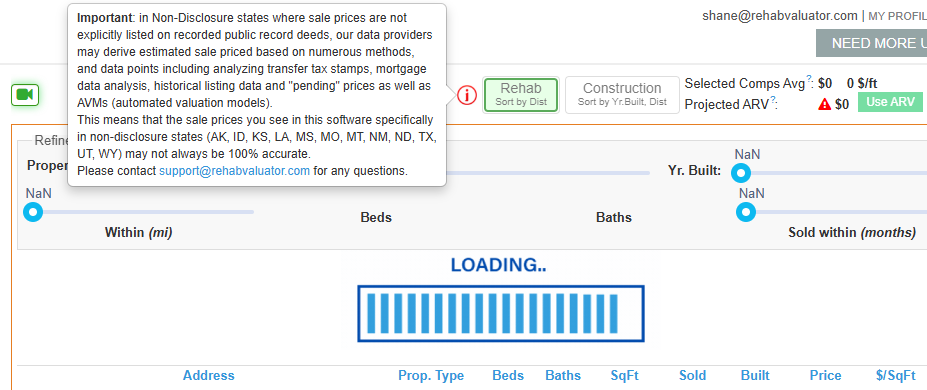
NOTE ON NON-DISCLOSURE STATES:
Rehab Valuator now sources Comparable Sales from Public Records nationwide!
Unfortunately, there are a handful of states where disclosure of sales price is not required and is not a matter of public record. In these “non-disclosure” states, the only truly reliable source for comparable sales will be the local MLS service.
The following states are non-disclosure states:
Idaho, Indiana, Kansas, Mississippi, Missouri, Montana, New Mexico, North Dakota, South Dakota, Texas, Utah, and Wyoming
If you’re doing business in one of these states, there are a few things to try:
- Check the Zillow listing hyperlinked inside of Rehab Valuator. It is becoming more common for real estate agents to upload sales data, even in non-disclosure states.
- You can also use a local real estate agent and get comps data from them. You can then manually upload your comps into Rehab Valuator presentations and use them along with the rest of your materials.
Next Tutorials

4. Purchase Assumptions Tutorial

5. Rehab Budget and Project Management Tutorials

In non-disclosure states, assuming the Comparable Sales Tool will still be able to identify recent sales, can the actual sales price be manually entered once obtained from a real estate agent? I see that you can upload these comps manually into presentations but can that information be utilized by the tool to estimate an ARV?
Matt, yes! You are able to manually enter the sales price, as well as any comps you’ve sourced from other places and use that information to calculate your ARV.
Thanks great info.
H! Daniil,
I had been learning your “rehabvaluator” in the past few years, but too bad my schedules were so busy I had no chance to practice!
Your software and your coach always one of the best I admit!
For your continued SUCCESS, Daniil!
Thank you Yen-Suong Le! Even if you’re only able to practice here and there, keep at it for YOUR CONTINUED SUCCESS!!
Daniil, very helpful this is where I got stuck, but thanks to you for the video.
Happy it helped you along India! ?
Thank you Daniil,
Contents is awesome and are there private lenders on this platform?
Hi Christie! Happy to hear you’re checking out our content 🙂 We do not supply lists of lenders on our platform but, we do provide education on this topic. You’re able to check that out here: https://rehabvaluator.com/raising-capital
Hello Jan,
Thank you for reaching out to us! I’ve emailed you directly so we can get you set up with a 1on1 software setup screenshare coaching session. Have a great day and we look forward to working with you soon!
Hi Daniil, I have been a Premium RV customer for some time but have not taken action. I am ready and want to know how to sign in to start using this amazing tool.
Hi Rufus, yes, Rehab Valuator will help you analyze potential deals no matter if you are wholesaling, flipping, developing, or building a rental portfolio. Let us know if you have any more questions.
Do this work for assigned properties wholesale properties if so this is wonderful
Daniil those tools are very helpful thank you so much
Hi Paul, that’s great diligence. The more you know about a property, the more you can feel comfortable with your valuation.
After viewing the first video about comps, the idea of viewing the property addresses on Google, i thought that’d be a good idea to see how closely the property in question looked liked any of the comp’s. Also, having access to view a Grant Deed or Deed of Trust to see if the property description had the same tract name. That may be good to know. If a property is developed by the same developer then you would feel better knowing you have a real good comp,
Taryn, these are good questions. Pulling comps when there are fewer sales to pull from and when differences like large land parcels do make it tough. Sometimes, you need to expand your distance filters (if possible) or even things like property square footage or room counts to get more data. Then you make some adjustments to get to the right value. This is obviously tougher than when you have 25 houses to choose from that are nearly identical and close by. Tax data sometimes falls in line with value but can be lower or higher in a lot of cases, too.
I’ll reach out to you directly and privately to see if we can help a little bit more.
How do you comp a rural area? I have a lead where the house was built in 2003 on 20 acres of land, but when I run the comps, there is only one house, 5 miles away, that is somewhat comparable. All of the other homes are brand new.
Also, the tax assessor site has a value of $304k for the land & house, but the owner is asking for $400k. I’m having a hard time doing comps for this house. Any suggestions on how I should handle this?
Hi Nova, Thanks for kind comments! Happy to know they were helpful.
I found these tutorials to be very helpful. Thank you!
Hi Stephen, in an ideal world the comps will be similar in style, age, size, condition (or future condition of course), etc. This can prove hard sometimes, but if you compare cape cods to cape cods, let’s say, that’s great.
After viewing the first video about comps, the idea of viewing the property addresses on Google, i thought that’d be a good idea to see how closely the property in question looked liked any of the comp’s. Also, having access to view a Grant Deed or Deed of Trust to see if the property description had the same tract name. That may be good to know. If a property is developed by the same developer then you would feel better knowing you have a real good comp, ihmo.
Hi Jan,
You’re welcome! Good to hear you’re learning the system and process! We look forward to having you as a premium member shortly!
Thank you. Will purchase the premium when closer to start. I’m currently researching and learning processes.
Hi Leo. It honestly can work for any size of a project. We’re using it right on single fam and large mixed use development projects as well!
Rehab Valuator has been quite the learning tool in order for me to hit the ground running in wholesaling the more I click around on the website I discover more tools, tips and learning skills that I find useful and could help grow my business into a more established empire.
Hi John! Thanks for the kind words, glad to hear that you enjoyed the tutorial.
Great job as always
Hi Gerald,
We are glad the software cleared up that concern as well!
This was a major concern for me.
Glade the software cleared that concern.
Hello there,
This information is fantastic….maybe I missed this part, but what size of a project does your project management training works for? Is it only for housing development?
Thank you…?